Turn Your Plex Server's Idle GPU into a Local AI Workhorse
Introduction
Picture this: you have a dedicated Plex media server humming along in a corner, loaded with a capable GPU for smooth hardware transcoding. Most of the time, that GPU sits nearly idle—only springing to life when a client needs a video format conversion. Meanwhile, you've been eyeing the world of local AI, particularly large language models (LLMs), but you hesitate at the thought of building a separate, expensive machine just to run them. What if we told you that the same GPU can serve both purposes perfectly? You don't need two separate servers. Plex and local AI share more in common than you might think, and combining them on one box isn't just practical—it's brilliant.
The Plex Server and Its GPU
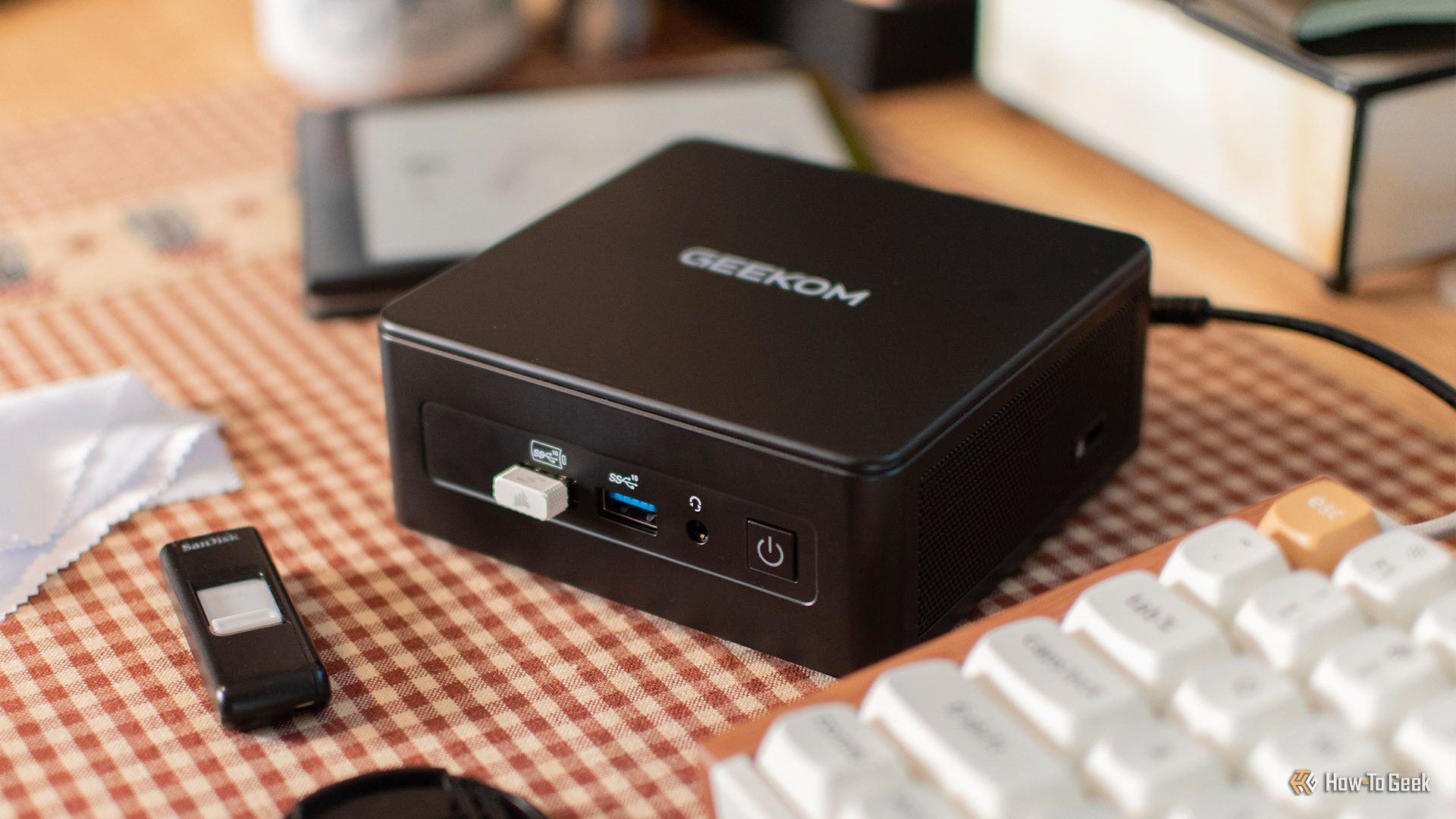
Plex is a powerful media server that organizes and streams your personal library of movies, TV shows, music, and photos. When a client device—like a smart TV, phone, or game console—requests a file that isn't in a compatible format, Plex can transcode it on the fly. This process is extremely demanding on the CPU, which is why many enthusiasts add a dedicated GPU to take over the heavy lifting. Hardware transcoding using GPUs (NVIDIA NVENC, Intel Quick Sync, AMD VCE) dramatically reduces CPU load and power consumption, while also enabling faster, higher-quality conversions.
Most users choose a mid-range or even a high-end GPU for this task, but here's the catch: the GPU only works hard during the actual transcode. For a single stream or even a few concurrent ones, the GPU's utilization spikes only briefly. The rest of the time—which is the vast majority—the GPU is running at near-zero load, idling away while drawing power and taking up space.
The Idle GPU Problem
That idle GPU is a wasted resource. You've already paid for the hardware, electricity, and cooling, yet you're only using a fraction of its potential. For typical Plex environments, especially if you direct-play most content and only transcode occasionally, the GPU sits dormant for hours or days. This is a classic case of underutilized hardware. Many enthusiasts respond by building a second machine for other GPU-accelerated tasks, but that doubles cost, complexity, and power usage.
The solution is to find additional workloads that can run alongside Plex without interfering, and that can take advantage of the same GPU when it's idle. Local AI is the perfect candidate.
Local AI on the Same Hardware
Local large language models (LLMs) like Llama, Mistral, and many others are rapidly maturing. They can answer questions, summarize text, write code, and more—all without sending your data to a cloud server. Running them on your own hardware ensures privacy, low latency, and no subscription fees. However, AI inference is computationally intensive, and a GPU is far more efficient than a CPU for this task. You don't need a top-tier data center card; even a modest GPU like an NVIDIA RTX 3060 can run a 7B parameter model comfortably.
Other local AI workloads include image generation (Stable Diffusion), speech recognition (Whisper), and object detection. All of these benefit from GPU acceleration. And because inference is typically bursty—you issue a prompt, get a response, then wait—it meshes well with the idle cycles of a Plex transcoding GPU.
Why It Makes Sense to Combine
Combining Plex and local AI on the same server offers several compelling advantages:
- Cost savings: No need to buy a second GPU, CPU, motherboard, RAM, or case. You already have the hardware.
- Simplified management: One operating system, one set of backups, one update schedule. Fewer points of failure.
- Lower power consumption: Running one machine instead of two reduces your electricity bill and heat output.
- Space efficiency: Especially important if your server lives in a small closet or living room.
- Resource sharing: Modern operating systems and hypervisors can prioritize workloads, ensuring Plex always has enough GPU for transcoding while AI tasks fill otherwise idle slots.
How to Set It Up
Getting started is easier than you'd expect. Most Plex servers run on Linux (Ubuntu, Debian) or Windows. Here's a typical approach:

- Install Plex if you haven't already, and configure hardware transcoding. Verify the GPU is working with
nvidia-smi(for NVIDIA GPUs). - Set up container runtime (e.g., Docker with NVIDIA Container Toolkit). This allows you to run AI software in isolated containers while still accessing the GPU.
- Deploy an AI inference server like Ollama, LocalAI, or vLLM. For example, run
docker run -d --gpus all -v /path/to/models:/models ghcr.io/ollama/ollama. - Pull a model using the inference server's API. Start with a small one like
llama3.2:1bto test. - Consume AI services from other devices on your network. Use a web UI like Open WebUI, or integrate via API calls from scripts or home automation.
Because Plex and the AI container both request GPU memory, you may need to set memory limits. For instance, if your GPU has 8 GB VRAM, you might reserve 1 GB for Plex and let the AI model use up to 6 GB, leaving headroom. Tools like nvidia-smi help monitor usage.
Potential Challenges
While the concept is sound, you should be aware of a few pitfalls:
- GPU memory contention: If Plex is already using a large chunk of VRAM for a complex transcode and an AI request arrives, the model may fail to load. Plan your model size accordingly.
- Performance isolation: Without careful scheduling, an AI inference could momentarily steal GPU cycles, causing a stutter in a video stream. This is rare with modern GPUs and well-designed drivers, but worth testing.
- Driver and software compatibility: Ensure your GPU drivers support both workloads. NVIDIA's server driver is usually fine, but consumer drivers may limit concurrent tasks.
- Power and cooling: Running both workloads simultaneously increases heat. Ensure your case has adequate airflow.
Conclusion
Your Plex server's GPU is far from wasted. By repurposing those idle cycles for local AI, you can experiment with LLMs, generate images, or run speech recognition—all without buying additional hardware. The key is understanding the resource trade-offs and setting up a proper containerized environment. Whether you're a media enthusiast looking to dip into AI or a tinkerer wanting maximum bang for your buck, this dual-use approach is a smart, efficient, and satisfying way to get the most out of your hardware. So go ahead—stop thinking you need two servers. Your one Plex box can be an AI powerhouse too.