Revive Your Android TV: The Simple Speed Boost You’ve Been Missing
Is your Android TV feeling sluggish? Apps take forever to open, menus stutter, and even scrolling feels like a chore. You're not alone—performance degradation over time is common, but there's a quick fix that many users overlook. In this guide, we'll answer your top questions about why this happens and how to restore that snappy, out-of-the-box feel with just a few taps.
1. Why does my Android TV slow down over time?
Android TVs accumulate temporary files, cached data, and background app processes as you use them. These leftovers are meant to speed up frequent tasks, but over months, they can bloat the system. Hardware limitations (like lower RAM or storage) make matters worse. The result? Laggy transitions, delayed app launches, and even freezes. This isn't a sign of a broken TV—it's a natural buildup that needs occasional clearing.
2. What is the hidden one-click speed boost?
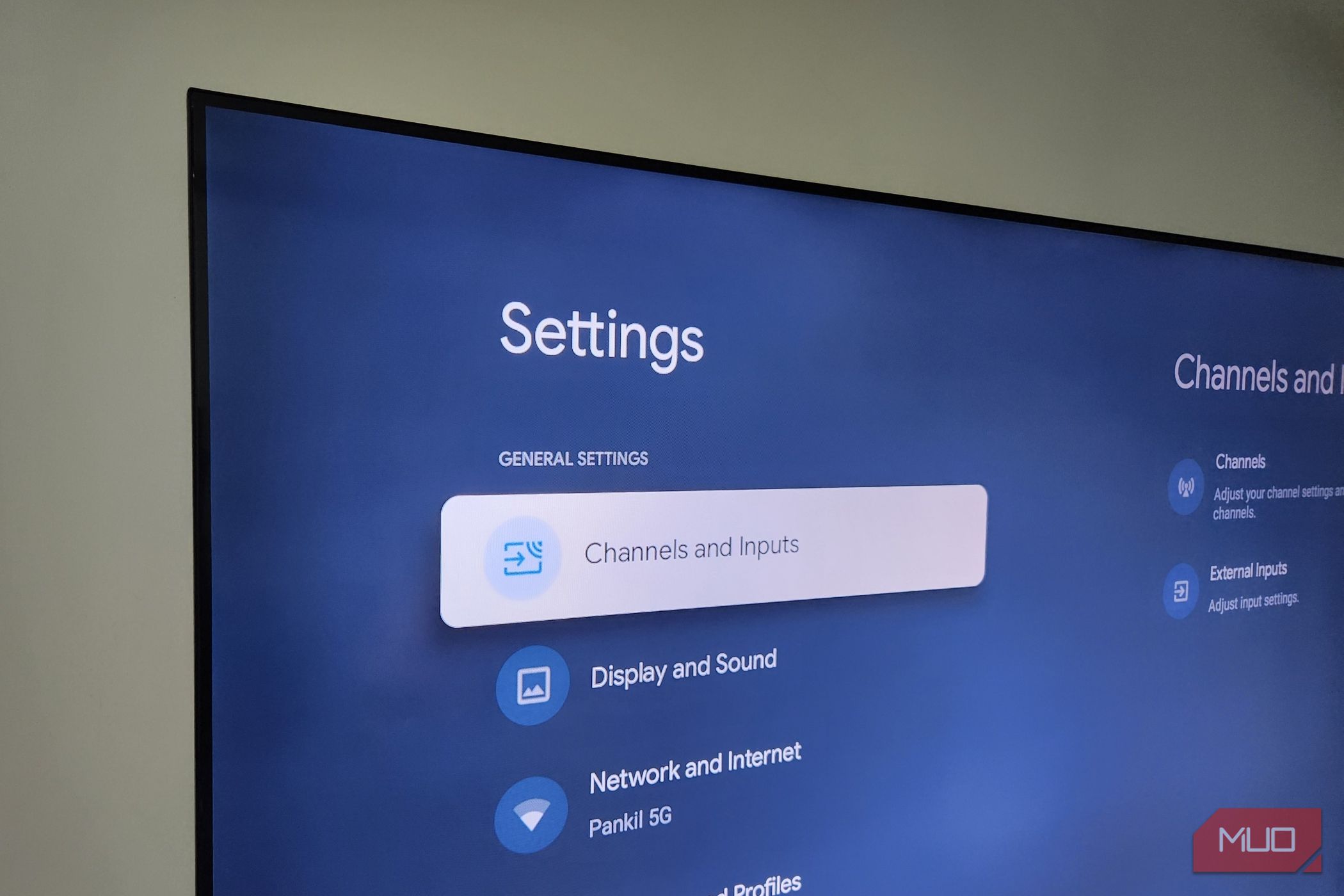
The secret lies in clearing the system cache. It's not a hidden developer option or a tricky hack—it's a straightforward menu in Settings > System > Storage. Look for “Cache data” and tap it. A confirmation dialog will appear; select OK. In seconds, your TV will empty all temporary files from the system partition. This doesn’t delete your accounts, settings, or apps—it just removes the junk that’s slowing things down. It’s literally a one-tap fix that's been there all along.
3. How do I clear the cache on my Android TV?
Follow these steps:
- Grab your remote and press the Home button.
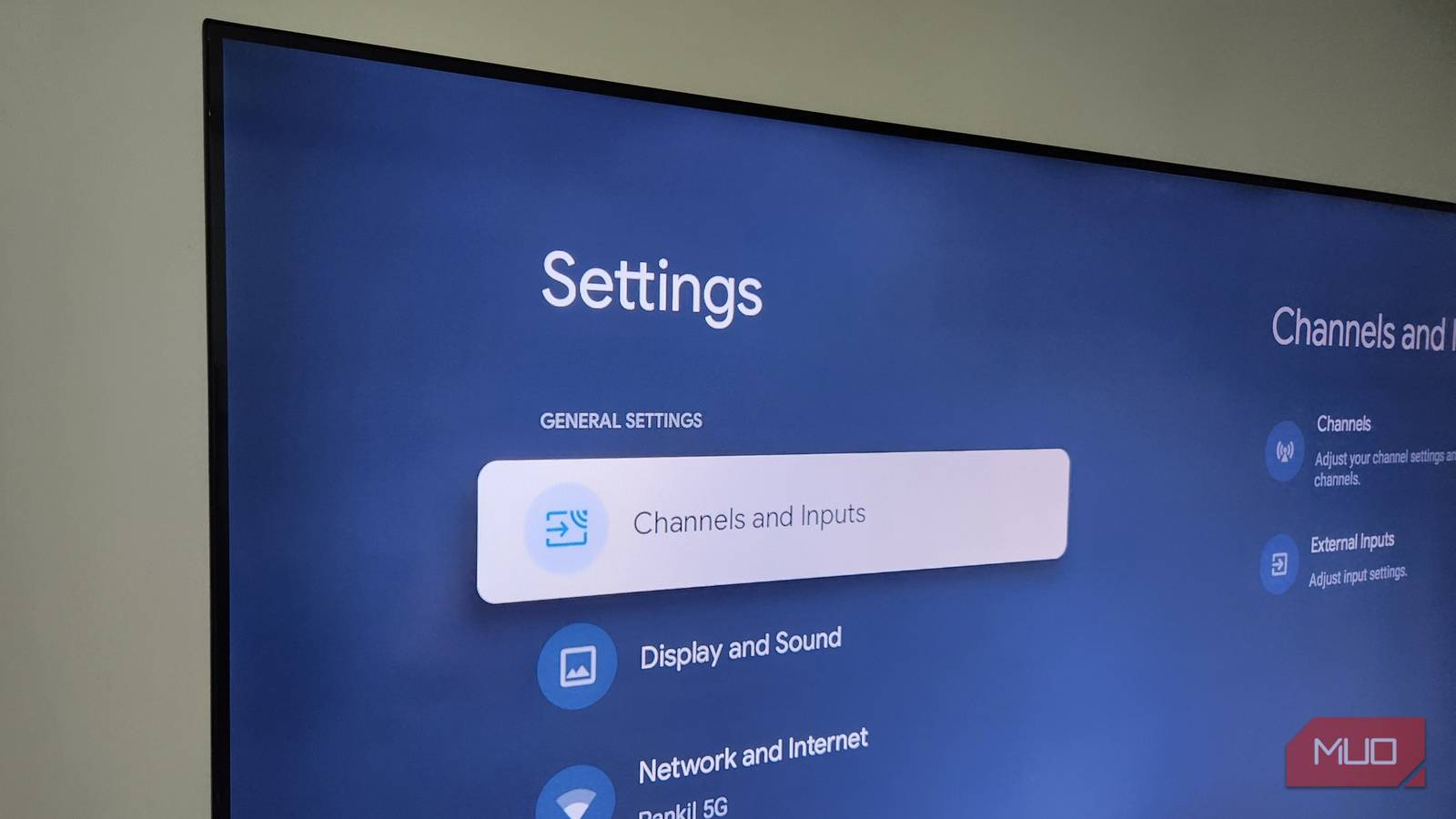
- Navigate to Settings (gear icon).
- Scroll to System (or “Device Preferences”).
- Select Storage.
- Look for the section labeled Cache data (it may show a size in MB or GB).
- Tap it and confirm with OK. The TV will process the deletion in a few seconds. That's it—your TV should feel noticeably snappier immediately.
4. Will clearing cache delete my apps or data?
No, it won't. Only temporary files are removed—things like thumbnail images, app caches, and system logs. Your installed apps, login credentials, home screen layout, and personal settings remain untouched. The only minor inconvenience is that some apps may take a fraction longer to load the first time after clearing, as they rebuild their caches. This is normal and temporary. Think of it like cleaning a dust filter: you're only removing the dirt, not the machine.
5. How often should I clear the cache?
It depends on your usage. For most people, clearing the system cache once every few months is enough. If you heavily stream 4K content, play games, or use many apps daily, consider doing it monthly. A simple sign it's time: if navigation feels sticky or apps take noticeably longer to open. Some users prefer to clear it right after a major system update to prevent conflicts. There's no harm in doing it more often—it's safe and quick.
6. Are there other ways to speed up my Android TV?
Absolutely! Beyond the one-click cache clear, try these:
- Uninstall unused apps – Free up storage space.
- Restart your TV weekly – This clears RAM and stops background processes.
- Disable animations – Go to Settings > Developer options (if enabled) and turn off animations.
- Update firmware – Ensure you're on the latest Android TV version.
- Check for app updates – Outdated apps can slow performance.
- Factory reset – Only as last resort if nothing else works.